Let AI Apply Auditor Comments to Your Financial Statements
June 7, 2026
Financial Reporting
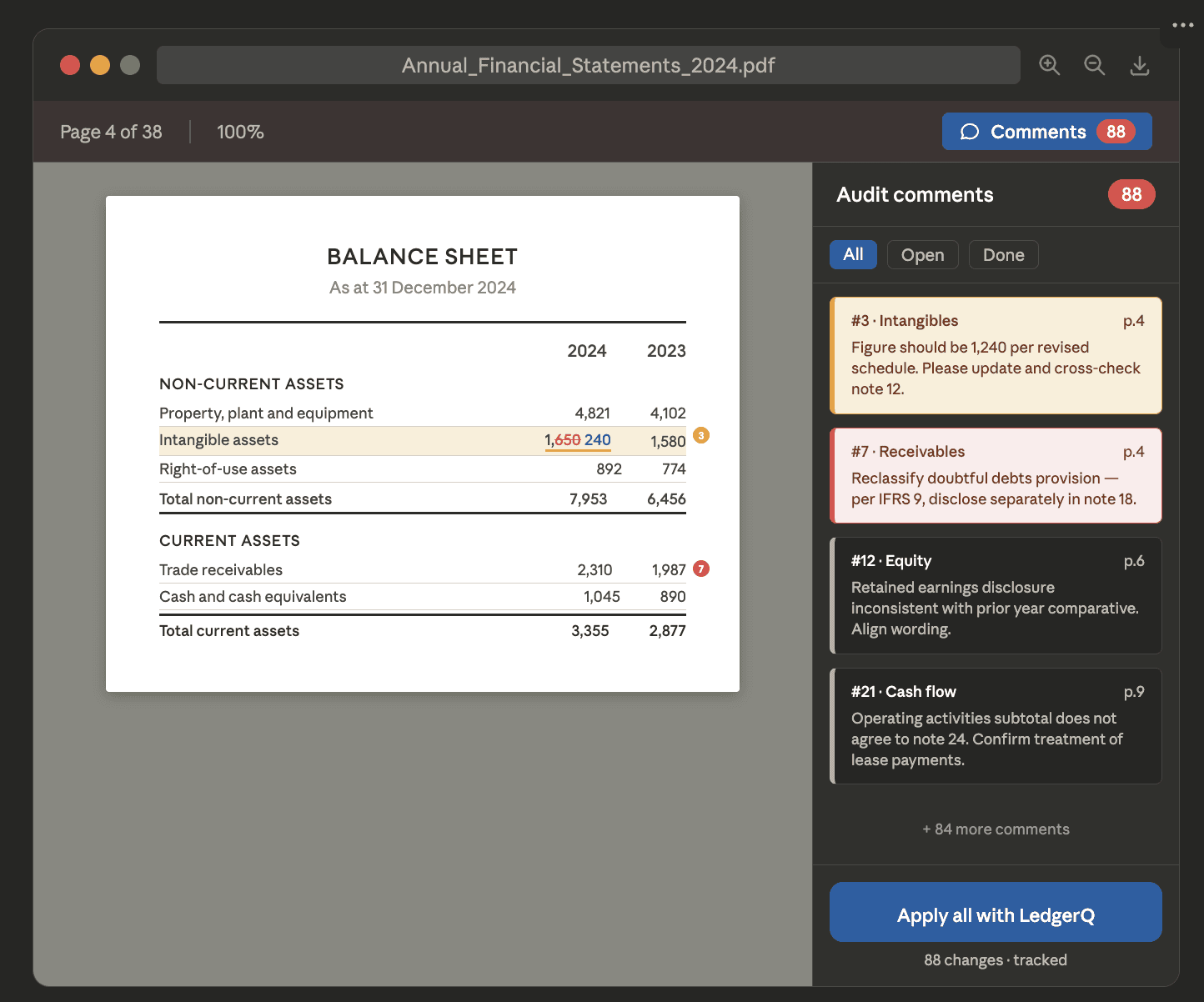

If you've ever spent hours working through an auditor's PDF comments and manually applying each change to a Word financial statement, you know how tedious — and error-prone — that process is. LedgerQ has just changed that.
How it works?
Open your financial statements in Word and launch LedgerQ add in.
Upload the PDF with auditor's comments and changes requested.
Hit Apply — LedgerQ instantly updates your report with tracked changes.
Review and approve changes in the Word document.
From Doing to Reviewing
The real shift isn't just speed — it's focus. When you're no longer manually adjusting text and figures, you can direct your attention to what actually matters: review. You can assess whether a reclassification in the balance sheet is correctly reflected in the notes. You can spot inconsistencies across the document rather than getting lost in line-by-line edits.
You stop doing. You start reviewing.
What This Means in Practice
Apply hundreds of audit comments in seconds
All changes appear as tracked changes — nothing hidden, everything auditable
No more copy-paste errors or missed comments
Faster turnaround, less stress at reporting crunch time
Current Support & Roadmap
LedgerQ currently automates updates to financial statements in Word format, based on auditor comments provided in PDF. Support for additional formats is on the roadmap — reach out for more information on what's coming.
Auditor's comments applied automatically.
LedgerQ ingests auditors’ comments directly from annotated PDFs and automatically updates the financial statements in Word, saving my team hours of manual work.
